 how-to
How to Optimize Print Layouts to Minimize Waste
Last Updated: October 23, 2026
Quick Summary
To optimize print layouts to minimize waste, choose sheet sizes that maximize sheet use, use print imposition to fit more pieces on every press sheet, and add bleed and trim before building the layout. Then quantify waste by computing cost per usable piece rather than waste percentage alone.
- Pull your last five jobs and compare sheet area used to total sheet area to set a waste baseline.
- Common offset sheet sizes include 25 x 38 in, 28 x 40 in, and 23 x 35 in.
- Keep at least 1/8 in between pieces so the cutter has room.
- Gang printing shares one make-ready sequence across several jobs to cut setup waste.
- Only accept a layout change if cost-per-usable-piece savings exceed added labor and delay cost.
Table of Contents
- Step 1: Identify Where Your Print Waste Comes From
- Step 2: Choose Sheet Sizes That Maximize Sheet Use
- Step 3: Use Print Imposition to Fit More on Every Press Sheet
- Step 4: Account for Print Bleed and Trim Before You Build the Layout
- Step 5: Combine Jobs With Gang Printing to Cut Setup Waste
- Step 6: Quantify Waste and Compare Layout Alternatives
- Step 7: Automate Nesting and Imposition to Scale Print Layouts
- Common Mistakes That Undo Waste Reduction in Print Layouts
- Frequently Asked Questions
Step 1: Identify Where Your Print Waste Comes From
Most print waste starts long before ink hits paper. It begins with a layout that leaves half the sheet empty.
Print layout waste is the material and time lost when a job uses more paper, setup, or press runs than it needs. Two sources cause most of it:
- Sheet waste: empty space on the press sheet
- Setup waste: make-ready sheets used to align and color-match
- Trim scrap: paper cut away to reach final size
Start by pulling your last five jobs. Compare the sheet area used to the total sheet area. That gap is your waste baseline.
If you want to see how waste stacks up across the whole supply chain, read how to reduce print waste in supply chain.
Step 2: Choose Sheet Sizes That Maximize Sheet Use
Sheet use is the share of each sheet covered by your finished pieces. A 70% sheet beats a 55% sheet every time, because you pay for the full sheet either way.
The fix is simple: pick the sheet size that fits your piece, not the other way around.
- Measure your finished size, including bleed
- Test two or three standard sheet sizes against it
- Count how many pieces fit in each, in both orientations
A brochure that fits six-up on one sheet may fit eight-up on a slightly larger one. That jump cuts your sheet count by a quarter.
Step 3: Use Print Imposition to Fit More on Every Press Sheet
Print imposition is the process of arranging pages on a press sheet so they fold and cut into the correct reading order (Imposition). Good imposition is where most layout savings live, and it is also where most reprints originate when it is done wrong.
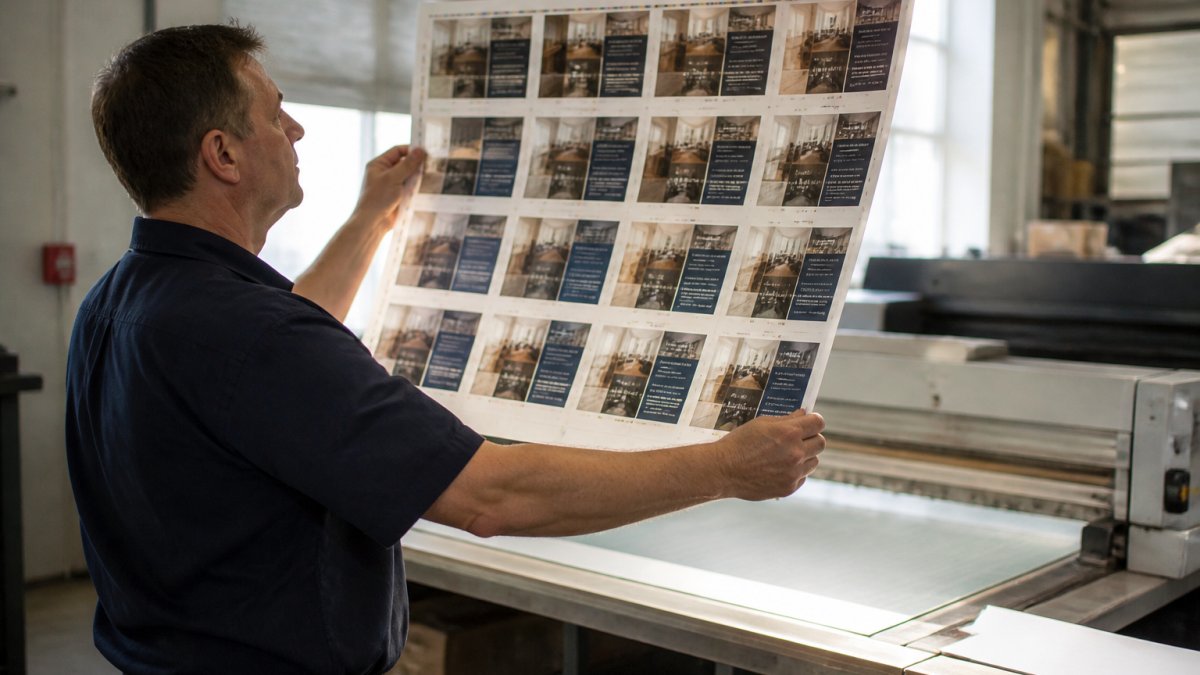
The four numbers that define every imposition
Before you move a single page, lock these in with your printer:
- Press sheet size: the actual sheet the press runs, not the trimmed piece size. Common offset sheet sizes include 25 x 38 in, 28 x 40 in, and 23 x 35 in; digital presses often run 12 x 18 in or 13 x 19 in.
- Gripper margin: the edge the press grabs, typically 3/8 to 1/2 in, which cannot hold live art.
- Bleed: usually 1/8 in past trim on every edge that touches the sheet edge.
Subtract gripper and bleed from the sheet, and what remains is your live imposition area. Every piece must fit inside it.
Worked example: fitting a 4-page folder
Say you are printing a 4-page self-cover folder, final trim 8.5 x 11 in, on a 25 x 38 in offset sheet.
- Add bleed: each piece becomes 8.75 x 11.25 in.
- Subtract gripper (0.5 in) and side margins from the sheet: usable area is roughly 24 x 37 in.
- Test orientations:
- Portrait grid: 2 across (17.5 in) by 3 down (33.75 in) = 6 pieces, with leftover strips.
- Mixed orientation: two portrait columns plus one landscape column (11.25 in wide) = 3 columns, 3 rows in the portrait columns and 3 in the landscape column = 9 pieces if the landscape pieces are rotated to fit the remaining width.
- Confirm fold direction against grain before committing.
The mixed-orientation layout is not automatically better, it depends on whether the folder folds on the grain and whether the cutter can handle the mixed grid without extra setup. That trade-off is the whole game.
How folding style changes page order
Imposition is not just packing. Page order on the sheet must match the fold. A 16-page signature, for example, is laid out so that when the sheet is folded and trimmed, pages read 1-16 in sequence.
The PrintWiki guide to imposition explains how page order shifts with different folding styles. Get this wrong and your pages print out of sequence, a full-sheet reprint, not a trim fix.
A practical imposition checklist
- Confirm press sheet size and gripper with the printer before designing.
- Add bleed to every edge that touches trim.
- Keep at least 1/8 in between pieces for the cutter.
Step 4: Account for Print Bleed and Trim Before You Build the Layout
Print bleed and trim are the margins that keep your design from showing white edges after cutting. Skip them and the whole sheet becomes scrap.
Bleed is the extra image area past the trim line, usually an eighth of an inch. Trim is the final cut line.
- Add bleed to every edge that touches the paper's edge
- Keep text and logos inside the safety margin
- Confirm trim marks with your printer before the run
Grain matters more than most people realize. Fold against the grain and the piece cracks along the fold.
Step 5: Combine Jobs With Gang Printing to Cut Setup Waste
Gang printing runs several jobs on one sheet at the same time (Combination Run).
Say you need business cards, rack cards, and small flyers. Run together, they share one make-ready sequence instead of three.
Group jobs by:
- Paper stock and weight
- Ink colors
- Finishing needs
Jobs that share all four are prime candidates. Jobs that share none should stay separate.
Batching also helps on the back end. One finishing pass beats three.
Step 6: Quantify Waste and Compare Layout Alternatives
You cannot cut what you do not measure. Most print buyers compare layouts by eyeballing the sheet, which hides the real cost driver: cost per usable piece, not waste percentage alone.
The three numbers to compute for every layout
1. Material utilization
Utilization % = Usable piece area ÷ Total sheet area × 100
This is the inverse of waste. A layout at 88% utilization wastes 12% of the sheet.
2. Spoilage-adjusted yield
Presses do not deliver every piece. Make-ready sheets, color approvals, and running spoilage eat into the count.
Spoilage-adjusted pieces = Pieces per sheet × Sheets run × (1 − spoilage rate)
3. Cost per usable piece
This is the number that actually decides between layouts.
Worked comparison
Assume a job needs 5,000 finished pieces. Paper is priced per sheet; setup is a fixed charge per make-ready; run cost scales with sheets; finishing scales with pieces.
| Layout | Pieces/sheet | Utilization | Setup sheets | Spoilage | Cost per usable piece |
|---|---|---|---|---|---|
| A: Standard grid | 6 | 78% | 150 | 3% | Baseline |
| B: Rotated mix | 8 | 88% | 150 | 3% | Lower paper cost, same setup |
| C: Gang with job 2 | 9 | 91% | 100 (shared) | 3% | Lowest if job 2 ships on time |
Layout C wins on paper and setup, but only if the second job's delivery date holds. If job 2 slips, you either hold inventory or run job 1 alone, and the gang advantage disappears.
The trade-off framework
Every layout decision trades four things against each other:
- Waste: paper and ink saved per piece.
- Quality: tighter nesting can push pieces closer to trim, raising risk of cut defects.
- Labor: mixed orientations and gang runs add sorting and finishing time.
A simple rule: only accept a layout change if the cost-per-usable-piece savings exceed the added labor and delay cost. If the savings are under a few percent, the operational risk usually outweighs the gain.
For the cost side of these trade-offs, see how to reduce commercial printing costs in 2026.
Step 7: Automate Nesting and Imposition to Scale Print Layouts
Nesting software arranges pieces on a sheet automatically, testing rotations and spacing faster than any person can.
Imposition tools do the same for page order and folding.
What to look for:
- Support for your standard sheet sizes
- Bleed and trim handling built in
- Grain direction controls
Automation removes the guesswork. Your team stops rebuilding layouts by hand and starts checking them instead.
When you are ready to scale, get a quote for bulk print projects and scale print production with a partner.
Common Mistakes That Undo Waste Reduction in Print Layouts
The biggest mistake is optimizing one job at a time. Waste lives between jobs, not just inside them.
Here is what is seen most often:
- Ignoring grain direction until the fold cracks
- Skipping bleed and paying for a reprint
- Chasing tight nesting while setup time climbs
Pricing models matter here too. Setup charges, run charges, and paper costs hit differently depending on how you bundle work. Commercial printing pricing models explained breaks down which savings actually reach your invoice.
One more thing: review your waste numbers quarterly. Layouts drift as products change, and last year's efficient sheet may be this year's scrap.
Frequently Asked Questions
What is print imposition, and how does it reduce printing costs?
Print imposition is the process of arranging multiple pages or designs onto a single press sheet before printing. Instead of running one page per sheet, you fit as many as the sheet size allows, then cut and fold them into the finished pieces. This raises sheet utilization and cuts the number of press sheets you pay for. Fewer sheets means less paper, less ink, and less make-ready time, which lowers the cost per finished piece on every print run.
How do bleed, margins, and trim affect paper usage?
Bleed is the extra image area beyond the trim line that gets cut away after printing, usually 0.125 inches on each side. Margins protect text from the trim. Both consume space on the sheet, so generous bleed and wide margins reduce how many pieces fit per sheet. Set bleed to the minimum your finishing equipment needs and keep margins consistent across the job. Trimming to a size that divides evenly into the parent sheet prevents leftover strips that end up as scrap.
How can a printer reduce setup waste on short-run jobs?
Setup waste comes from make-ready sheets used to align plates, check color, and dial in registration. You can cut it by grouping jobs that share paper stock, ink colors, and finishing into one gang printing run, so the press is set up once instead of several times. Standardizing substrates and trimming to common sheet sizes also helps. Sequencing jobs from light to dark ink reduces wash-up cycles. Each of these steps lowers the number of make-ready sheets per order.
How can you calculate the best layout for a print job?
Start with the parent sheet dimensions and the finished trim size, then divide sheet width and height by the piece dimensions to see how many fit in each direction. Multiply those counts for the total per sheet, and subtract space lost to bleed, grip, and trim. Compare that figure against alternative sheet sizes or rotated orientations. The layout with the highest sheet utilization wins, provided grain direction and finishing still work. Run the same math for each candidate before committing to a print run.
Cutting print waste is not about one clever trick. It is a habit: measure the sheet, test the layout, batch the jobs, and check the numbers again next quarter. American Printing Services, LLC helps marketing and operations teams do exactly that, with a network of over 2,500 production facilities, fast turnaround, and one partner for everything from business forms to branded merchandise. Get started with American Printing Services, LLC and turn wasted sheets into savings.