 how-to
How to Prepare Print-Ready Files for Custom Apparel
Table of Contents
- What Print-Ready Artwork Means for Custom Apparel
- Custom Apparel File Formats: Choosing the Right Format
- T-Shirt Design Resolution and DPI Requirements
- Vector Files for Screen Printing: Setup and Preparation
- Color Mode, Transparent Backgrounds, and Print Quality
- Custom Apparel Artwork Checklist Before Handoff
- Common File Preparation Mistakes and Troubleshooting
- Conclusion
- Frequently Asked Questions
Last Updated: October 14, 2026
What Print-Ready Artwork Means for Custom Apparel
Print-ready artwork meets every technical specification your printer needs to produce high-quality custom apparel without errors or delays, giving them everything required for consistent results across every garment.
At American Printing Services, LLC, we've seen how learning how to prepare print-ready files for custom apparel eliminates costly reprints, missed deadlines, and color inconsistencies, a few technical details that take minutes to fix upfront but hours to troubleshoot later.
A print-ready file includes the correct format, resolution, color mode, outlined fonts, and linked images, letting your printer move directly from file to press without guessing your design intent.
Custom apparel printing methods have different file requirements. Understanding these requirements before you submit saves time and money.
Custom Apparel File Formats: Choosing the Right Format
Your file format determines whether your printer can open your design, preserve quality, separate colors, and scale without losing detail.
Vector Formats (AI, EPS, SVG)
Vector files use mathematical formulas to create shapes and lines, scaling to any size without losing quality, an AI file enlarged to 100 inches wide still looks sharp.
AI files (Adobe Illustrator) are industry standard for custom apparel artwork. Most professional printers accept them, and they preserve all layers, effects, and color information.
EPS files (Encapsulated PostScript) work across software programs, and many printers prefer them for screen printing because they handle spot colors cleanly.
SVG files (Scalable Vector Graphics) are web-friendly, scale infinitely, and keep file sizes small, but not all printers accept them, so check first.
Vector formats are best for:
- Logos and text-based designs
- Designs with solid colors or simple gradients
- Any design you might resize later
Raster Formats (PNG, JPEG, PDF)
Raster files use pixels and have a fixed resolution. Enlarge one too much and it becomes blurry and pixelated.
PNG files preserve transparency and work well for digital printing and direct-to-film, supporting millions of colors and lossless quality, use PNG when you need a transparent background.
JPEG files compress heavily and don't support transparency. JPEG works for photographs but loses quality each time you edit and resave, so avoid it for custom apparel unless your printer requests it.
PDF files can contain vector or raster content, are universal, and print predictably. They lock your design against accidental changes, and many printers accept them as a final format.
Raster formats work for:
- Photographs and detailed artwork
- Designs that won't be resized
- Quick proofs and mockups
T-Shirt Design Resolution and DPI Requirements
Resolution determines print quality. Low resolution produces blurry, pixelated results. High resolution ensures crisp, clean artwork.
DPI (dots per inch) measures how many dots your printer places in one inch. PPI (pixels per inch) measures pixel density in your digital file. For custom apparel printing, you need minimum 300 DPI at your final print size.
In practice, a design printing 10 inches wide needs a file 3,000 pixels wide (10 inches × 300 DPI). Scale it larger without increasing pixel dimensions and DPI drops, hurting quality.
Calculate your resolution requirements:
- Measure your final print size in inches
- Multiply width and height by 300 (for DPI)
- Your file should be at least that many pixels
Example: A design printing at 5 inches wide needs 1,500 pixels minimum width; a 12-inch design needs 3,600 pixels.
Embroidery doesn't use DPI the same way but still requires clean, sharp artwork.
Vector Files for Screen Printing: Setup and Preparation
Your file must be prepared to make the separation process smooth.
Start with a vector file in Illustrator or similar software. Convert all text to outlines so the printer doesn't need your fonts, then ungroup all objects so every element is a separate shape, easing color separation and preventing accidental overlaps.
Check your line weights: lines thinner than 0.5 points may not print cleanly, and fine details can fill in or disappear on fabric. Simplify intricate areas.
Color Separation and Spot Colors
Color separation breaks your artwork into individual color layers, one color per screen.
Spot colors are specific, pre-mixed inks, with Pantone as the standard. They cost more per screen but deliver consistent, vibrant, accurate color.
Specify each color by its Pantone number. Your printer mixes that exact ink and prints it on its own screen.
If your design uses many colors, consider process color printing instead: four screens (cyan, magenta, yellow, black) mix to create thousands of colors, costing less per screen but requiring more precision.
Prepare your file for color separation:
- Use only solid colors (no gradients or transparency)
- Assign each color a Pantone spot color
- Label each color layer clearly
- Avoid overlapping shapes of different colors (they'll print on top of each other)
Line Weight and Fine Detail Considerations
Line weight is the thickness of lines and strokes in your design. Too thin and lines disappear. Too thick and they bleed into surrounding areas.
Use a minimum line weight of 0.5 points, ideally 1 point or thicker. Fine lines (0.25 points or less) may not survive the printing process.
Fine details are a bigger problem: tiny text, thin connecting lines, and intricate patterns can fill in or break apart on fabric, and text smaller than 8 points becomes hard to read. Simplify detail-heavy designs.
Test your design at 100% zoom at actual print size. If details look unclear there, they'll look worse on the garment, so simplify before submitting.
Color Mode, Transparent Backgrounds, and Print Quality
RGB vs. CMYK Color Modes
Your file's color mode determines how colors display and print. RGB (red, green, blue) is for screens. CMYK (cyan, magenta, yellow, black) is for printing.
RGB uses light to create colors, and your monitor displays RGB. Design in RGB and print in CMYK and colors shift: blues darken, reds turn orange, greens lose vibrancy.
CMYK uses ink and is the standard for custom apparel printing. Convert your file to CMYK before submitting; most design software includes a "convert to CMYK" option.
For screen printing with spot colors, color mode matters less because you're using specific Pantone inks, but for digital printing and direct-to-film, CMYK conversion is essential.
Convert to CMYK in your design software:
- Open your file in Illustrator or similar program
- Go to Image > Mode > CMYK (or File > Document Color Mode > CMYK)
- Save as a new file so you keep your RGB original
Setting Up Transparent Backgrounds
Transparent backgrounds let the garment color show through.
Use PNG format for transparent backgrounds. PNG preserves transparency information. JPEG and PDF don't support transparency well.
In your design software, set the background layer to transparent rather than filling it with white. Export as PNG with transparency enabled; your printer will print only your artwork, letting the garment show through.
Test your transparency by opening the PNG in a preview program. You should see a checkerboard pattern behind your design; if you see white, the background isn't transparent.
Transparency matters because the ink transfers directly onto fabric. A transparent background prevents ink from printing where you don't want it.
Custom Apparel Artwork Checklist Before Handoff
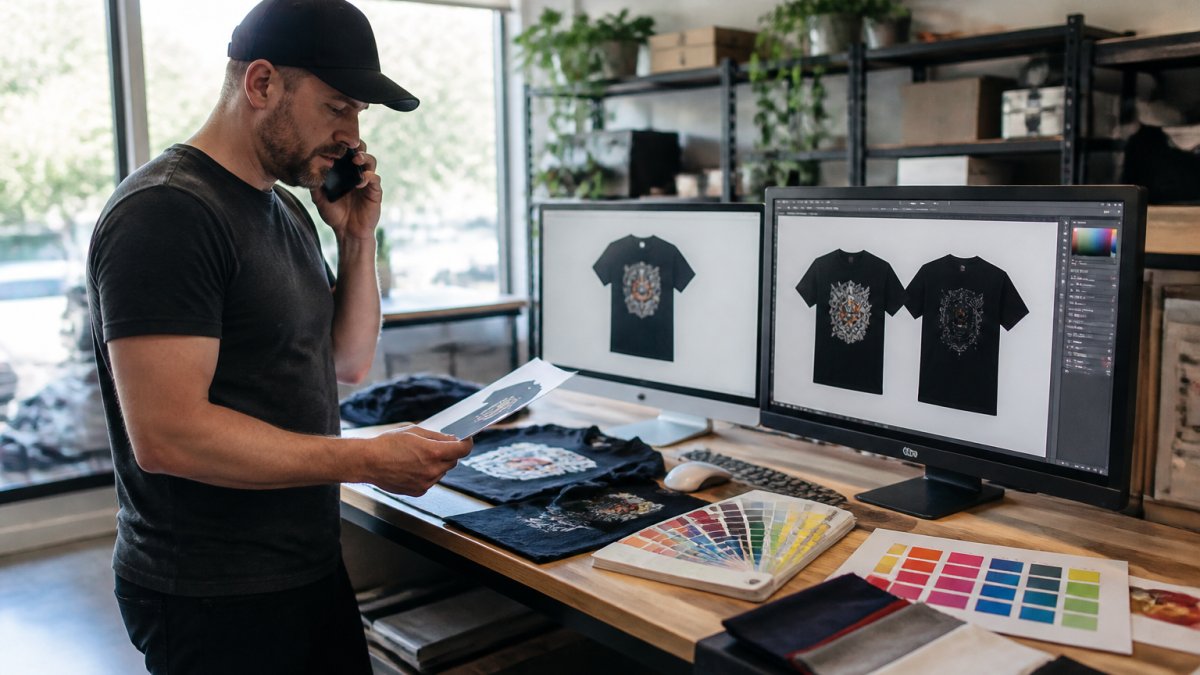
Before submitting files to your printer, run through this checklist. It catches errors early and speeds up production.
File format and naming:
- File is in correct format
- Filename is clear and descriptive (not "Design_Final_FINAL_v2.ai")
- File size is reasonable (under 100 MB)
Resolution and sizing:
- Resolution is 300 DPI at final print size
- Pixel dimensions match print size requirements
- Design is at actual print size (not scaled down)
Color setup:
- File is in CMYK mode
- Spot colors are assigned Pantone numbers
- No RGB-only colors remain
- Color separations are accurate if provided
Typography and details:
- All text is outlined (converted to paths)
- Minimum text size is 8 points
- Line weights are minimum 0.5 points
- Fine details are simplified or removed
Backgrounds and transparency:
- Transparent background is properly set
- No white background unless intended
- Linked images are embedded or included
Final checks:
- Design looks correct at 100% zoom
- No accidental layers are hidden
- File has been saved in final format
- You have a backup copy
Submit your files with this checklist completed. Your printer can move directly to production without asking for corrections.
Common File Preparation Mistakes and Troubleshooting
Most delays and reprints happen because of preventable file errors. Here are the mistakes we see most often.
Fix: Start with high-resolution artwork.
Mistake: Text isn't outlined Your printer receives the file but text looks wrong or disappears.
Fix: Convert all text to outlines before submitting. In Illustrator, select all text and go to Type > Create Outlines.
Mistake: Mixing RGB and CMYK Colors look vibrant on your screen but dull on the finished garment.
Fix: Design in CMYK from the start. If you designed in RGB, convert to CMYK before submitting.
Fix: Embed all images in your design file. In Illustrator, select the image and go to Links > Embed Image.
Mistake: Transparent background becomes white You designed with a transparent background, but it prints as white.
Fix: Use PNG format and verify transparency is enabled before exporting. Open the exported file and check for a checkerboard pattern behind your design.
Fix: Set your canvas to actual print dimensions before designing. If your design will print 10 inches wide, create a 10-inch-wide canvas.
Conclusion
Understanding how to prepare print-ready files for custom apparel takes a few extra steps upfront, but it eliminates delays, reprints, and color problems that cost far more later. Start with the right file format, set correct resolution and color mode, outline your text, and embed your images. Run through the checklist before submitting. These simple steps make the difference between a smooth production run and a frustrating one.
American Printing Services, LLC works with businesses across the country to ensure their custom apparel arrives on time and looks exactly as intended. Our network of over 2,500 production facilities means we can handle rush orders and maintain consistent quality across multiple locations. We guide you through file preparation, handle color matching, and deliver precision results. Contact American Printing Services, LLC for a free consultation and get your custom apparel project moving forward today.
Frequently Asked Questions
What does print-ready artwork mean for custom apparel?
Print-ready artwork is a design file prepared to exact specifications for your chosen printing method. It includes correct file format, resolution (typically 300 DPI), proper color mode (CMYK for most printing), outlined text, linked images embedded or converted, and transparent backgrounds where needed. Print-ready files eliminate production delays and ensure your design prints accurately without color shifts, blurry details, or unexpected modifications by the printer.
What file format is best for custom apparel printing?
Vector formats (AI, EPS, SVG) are best because they scale without quality loss and support precise color separation. High-resolution raster files (PNG with transparency, PDF) also work well. Always confirm your printer's preferred format before submitting. Vector files give you the most flexibility across different printing methods.
What resolution should artwork be for a custom T-shirt?
Artwork should be 300 DPI (dots per inch) at your final print size. If your design is 10 inches wide, the file should be 3,000 pixels wide at 300 DPI. Lower resolution (72 DPI) causes pixelation and blurry text. Vector artwork doesn't have a DPI requirement because it's resolution-independent, but any embedded raster images must meet 300 DPI at print size.
Should custom apparel artwork be submitted in RGB or CMYK?
Submit artwork in CMYK (Cyan, Magenta, Yellow, Black) for most printing methods. CMYK matches how printers mix ink colors and prevents unexpected color shifts. RGB (used for screens) converts to CMYK during production, often resulting in duller colors. If your design tool defaults to RGB, convert it to CMYK before export. Always confirm your printer's color mode requirement.